How To Set Custom White Balance

White balance is the tool to help get the colors in your images as accurate as possible. White balance setting is based on the color temperature and those color temperatures are measured in a Kelvin scale. Higher the temperature, more blue light exists and lower the temperature, more red light exists. You can take an example of fire; lower temperature fire produces red flame whereas higher temperature fire produces blue flame. As a photographer it is important to know that any light below 4000k starts to appear as a red light and any light above 7000k starts appearing bluish. In photography, the warmer light means red or yellow and the cooler light means blue light. You have to judge the environment and the lighting condition of the shooting spot and adjust the white balance accordingly to get the nice and pleasant color effects to the photographs.
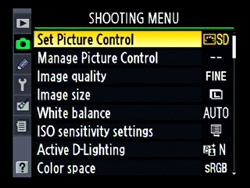
White Balance Menu on Nikon D90

White Balance Menu on Nikon D90

Nikon DSLRs come with the pretty standard predefined White Balance settings like Auto, Incandescent, Fluorescent, Direct Sunlight, Flash, Cloudy, Shade, Color temp and preset manual. Auto White Balance (AWB) works pretty well most of the time, but sometimes, you need to change the WB settings to get more accurate color representation on the picture. White balance can also be used to do an experiment with the color effects on the photograph and change the mood of the picture. Its an easy process to change the white balance option to one of the predefined settings. You just have to navigate through the white balance option from the menu button on the back of the camera (button location depends on your camera model) and select whatever value you want to set. If you are shooting under tungsten light bulb, you may want to change the white balance to Incandescent and if you are shooting outside, you may want to choose the direct sunlight and so on.
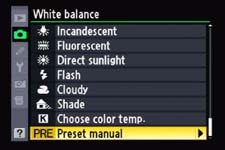
white-Balance-preset-manual-D90.jpg

If you want to set the custom White Balance rather than what is already provided with your camera, you have an option, called Preset Manual, in Nikon DSLR cameras. If you scroll all the way down to the white balance setting, you will see the last option as a preset manual denoted by 'PRE'. If you have not setup custom white balance using the preset manual before, you will see bunch of blank memory slots denoted by d-0, d-1, and d-2 and so on. These are the camera's memory slot to store the data from which it reads the white balance data if you choose to select the preset manual White Balance instead of other predefined values which we discussed earlier. Now, let’s discuss how to set the custom white balance.

How to set the Custom White balance using Preset Manual?

1. Set your camera into P, S, A or M mode.

2. Press and hold the WB (White Balance) button and rotate the rear command dial to select 'PRE' in the control panel and then release the WB button. When the white balance is in 'PRE' mode, you can use the front command dial to change the memory slot from d-0 to d-1, d-2 and others if available.

3. Press and hold the WB button for a few seconds again and you will see 'PRE' starts blinking on the top LCD screen.

4. While 'PRE' is blinking, take a shot of white or grey index card (Note: 'PRE' blinks about 10 seconds and you have to take the picture while it is blinking).

5. If the camera was successful to get the white balance data from the picture, it will display 'Good' on the LCD screen, and if not, it will display 'no Gd' and you have to try again with the proper exposure.

6. After you complete the process and set your custom white balance, your camera will take the reference of that image while applying the white balance to the future shots unless you have set the white balance to some other settings than PRE.

How To Take Multiple Shots In A Self-Timer Mode?

This post is a part of our Q&A section. If you want to submit your question, please use the form in the Contact page.

QA.jpg

Shyam (Delhi, India) asked : I have set my camera settings to take multiple shots in a self timer mode, but when the pictures is taken, it takes only one shot. What am I doing wrong here?

Hi Shyam! First of all, I found your question little bit incomplete. You didn't mention what are the settings you have adjusted on the camera and under what lighting condition you are taking pictures. Sometimes, even if your camera settings are right, because of the available lights or not enough time to recycle the flash power or many other variables, you may not get the result you want. If you are shooting in a bright daylight, all you have to do is make sure that the camera is set to continuous (burst) shooting mode and the focus is being tracked and locked if the subject is moving. If you are shooting in a dark night and using an external flash unit, you might have to check couple of other settings as well, which I will describe bit later in this blog. First, lets review the setup steps that need to be done on the camera to take multiple shots in a self-timer mode.

Camera Settings for a Self-Timer Mode

In this blog, I am taking the reference of Nikon D90, but I believe these camera settings are same for almost every other Nikon DSLR camera. It is possible that you might find the buttons and the menu options in different places, but once you get the idea, it won’t be hard to adjust the settings no matter which camera brand and model you use.

Now, lets get into the setup menu.

1. Press the Menu button on the back of the camera and go to CSM (Custom Setting Menu).

2. Use the multi-selector button and go to c Timers/AE lock menu.

3. Go to the option c3 and select Self-timer, and you will see two options inside.

Nikon D90 Self-Timer Mode Menu

Nikon D90 Self-Timer Mode Menu

4. First option, Self-timer delay, allows you to set the time after how many seconds camera should start taking the pictures, and the available values are 2s, 5s, 10s, 20s.

4. And the next option is Number of shots you want to take in a self-timer mode. You can choose between 1 and 9 shots.

Nikon D90 Self-Timer Mode

Nikon D90 Self-Timer Mode

5. Optionally, you can also select CL (Continuous Low) mode shooting speed (1fps, 2fps, 3fps and 4fps) into CSM->Shooting/display->d6 (CL mode shooting speed).

D90 Burst Mode.png

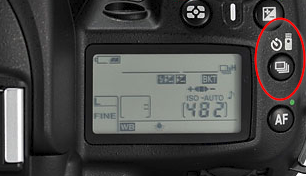
6. Finally, you have to change the shooting mode into self-timer mode (with burst shooting). You can do so my pressing the button on the top (shown in the picture) and rotating the main command dial while the button is still being pressed. When you see the burst mode with the clock (self-timer) icon displayed on the LCD screen, you can let go the button and you are all set.

If you have already done all of these setup on the camera and still not getting multiple shots in a self-timer mode, it is time to check your camera's Autofocus Mode. When you are shooting in a burst mode, you probably want to use AF-C or AF-A autofocus mode. And if you are shooting in a dark night with an external flash on, you may not get multiple shots because of the flash recycle time. Once you take a shot, flash may take a few seconds to recycle itself and get ready for the next shot. Also, if you are shooting with a higher frame rate, 4fps for example, its hard to achieve that shooting speed with an external flash unit attached on the camera.

I hope I was able to answer your question, and if you have a follow up question or more questions, please write back to me. Happy shooting!

Choosing A Flash Sync Mode On Nikon D90

Nikon D90 has five flash sync modes but not all of the sync modes are available in every exposure modes. Depending on which exposure mode you are currently using, you can choose one of the available flash sync mode. These flash sync modes can be set by using a quick setting screen on the back of the camera or holding down the flash button on the front of the camera (near the lens mount on the left side) and rotating the main command dial (also known as the rear command dial) while the button is still being pressed. When you select a sync mode, you can see the currently selected mode on the LCD screen indicated by the corresponding icon as shown below.

We have already discussed about the front curtain sync and the rear curtain sync in detail in my previous blog post. And, in this blog post, I will describe all of the flash sync modes in brief and will see which mode is available in which exposure setting.

1. Front Curtain sync

Front-Curtain-Sync.jpg

In this mode, flash fires as soon as the front curtain opens completely. The shutter then remains open for the duration of the exposure, which is until the closure of the rear curtain. If you are shooting a moving subject, it will produce a stream of motion blur lights effects, also known as the ghost effect, in front of the subject. The reason behind this effect is - when the flash is fired at the beginning of the exposure, it freezes the subject with enough lights in the scene and then subject continues to move, which creates a blurred effect.

2. Rear Curtain sync

Rear-Curtain-Sync.jpg

When the flash is in rear sync mode, the front curtain opens completely and then remains open for the duration of the exposure. At the end of the exposure, the flash is fired and the rear curtain closes. If the subject is moving, you will get the ghost effect behind the subject because the flash light at the end of the exposure will freeze the subject.

3. Red-eye reduction

Red-eye-Reduction.jpg

In this mode, there is a one second lag after pressing the shutter release button and before the picture is actually taken. During the delay, camera’s red-eye reduction lamp lights which causes the subject's pupil to contract and thus reducing the potential red-eye effects.

4. Slow sync

Slow-Sync.jpg

Slow sync mode allows the camera to use the shutter speed as slow as 30 seconds when the flash is attached, which helps to balance the exposure of the overall scene by illuminating the background with the ambient light and the subject with flash light. It's better to use a tripod to avoid the camera shake if you are using a flash in slow sync mode.

5. Red-eye reduction with slow sync

Red-eye-reduction-with-Slow-sync.jpg

This mode combines the slow sync with the red-eye reduction behavior when using the Program or the Aperture priority exposure mode.

Which sync mode can be used with which exposure mode?

In Program, or Aperture Priority mode, you can use all five flash sync modes. In Shutter Priority, or Manual Exposure mode, you can use front curtain sync, rear curtain sync and red-eye reduction modes. And in auto, or portrait, or closeup, or scene mode, you can only use auto (same as front curtain sync) and red-eye reduction mode, whereas in Night Portrait mode, you can only use slow sync and red-eye reduction with slow sync mode.