Nikon SB-700 Speedlight Review

I am a big fan of Nikon CLS technology and Nikon impressed me once again with it’s newly announced small and compact but powerful lighting system, SB-700. This flash unit lives up to the Nikon legacy. I always repeat the fact that photography is all about adjusting the composition and the lights. To support this fact, most of the DSLRs come with a built-in flash but the features they provide is very limited. That's why it is almost necessary to have an external flash unit which can provide creative control over any given lighting condition. If you are using a Nikon DSLR, you have many options to choose from; SB-R200, SB-400, SB-600, SB-700, SB-800 or SB-900. The Nikon Speedlight SB-700 is the newest addition to the Nikon flash lineup and can be considered as a replacement for SB-600. I was using a SB-600, which worked fine, but the SB-700 was just a great upgrade. Let’s talk briefly about this new gadget from the Nikon.

Nikon’s SB-700 is a compact flash unit but filled with features that SB-600 lacks and some of the features are inherited from more professional flash unit like SB-900. The built and the design of the unit looks professional, supports commander mode, capable of multi-step auto zoom up to 120 mm. It is designed with high-speed recycling time of 2.5 seconds with the NiMH batteries and 3 seconds with the Alkaline batteries. The built size of Nikon SB-700 (2.8 × 5.0 × 4.1 in) is a bit larger than SB-600 but smaller than SB-900 unit. However, it resembles more with SB-900 and shares some of the features and the control layout with SB-900 as well. The interface on the SB-700 is much more straight forward than the SB-600 which requires you to push two buttons at the same time to get into the menu items and configure the flash unit. The SB-700 is a much easier and faster unit to setup and has more features than the SB-600.

SB-700 is redesigned with the interactive control and very easy to setup and use. As I mentioned before, some of it's features and even controls are borrowed from SB-900. It has a nice LCD screen on the back and includes two mode switches on the left and the right side of the LCD screen which allow user to change modes without navigating through all the menu items. The SB-700 comes with the incandescent and the fluorescent filters for the color balance when shooting indoors. The SB-700 automatically detects the type of filters in use and adjusts the settings accordingly. It also comes with a built-in bounce card that can be used for the bounce flash effects and the diffusor to soften the intensity of lights.
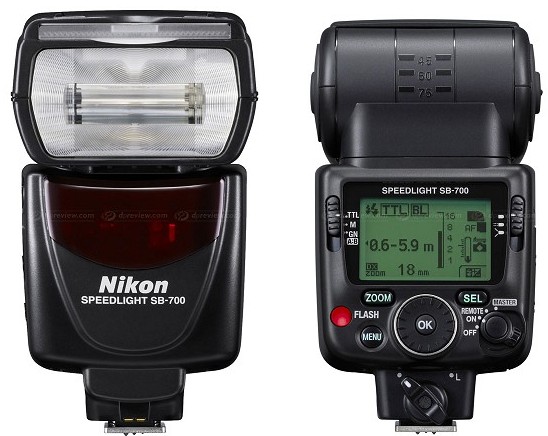
Nikon Speedlight SB-700

Nikon Speedlight SB-700

Features & Performance

1. Automatically senses the FX or the DX-Format camera in use and optimizes the light distribution.

2. Automatically identifies the mounted hard type color filters and adjusts the camera white-balance.

3. Works with the Nikon’s i-TTL (intelligent through-the-lens) metering system. This system works by firing a series of flash bursts to assist the camera in analyzing the scene. The camera’s metering system then processes this information and sends it back to the flash unit, balancing the flash output with the ambient light.

4. Using the simple slider switch on the back of the SB-700, you can optimize the light quality by selecting the Standard for general illumination, Center-weighted for portraits or Even, for groups or interiors.

5. Most of the newer entry level Nikon DSLRs do not have a commander mode to remotely control the flash Off Camera. And in that case, SB-700 can be used as a commander flash unit as well to control multiple wireless flash units.

6. SB-700 has a built-in thermal cut-out detection feature to prevent it getting damage from overheating. It works by extending the recycling time when SB-700 detects the heat build-up.

7. Flash Value (FV) Lock feature locks in a specific flash output on the main subject, regardless of the aperture, composition or the lens’ zoom position.

All in all, I highly recommend this flash over the SB-600. I wanted to get the SB-900 but its just too big and heavy for my needs and also couldn't justify the additional cost as well.
How To Paint With Lights?

This post is a part of our Q&A section. If you want to submit your question, please use the form in the Contact page.

QA.jpg

Lena (PA, USA) asked : Can you please talk about the light painting and what camera settings do I need for it?

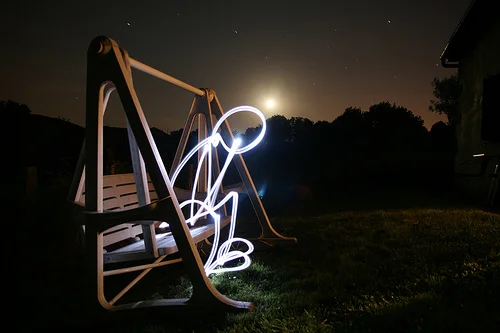
I want to start with explaining what is the light painting for those who are new to this photography phenomenon. Simply, light painting (also known as the light drawing or the light graffiti) is a photographic technique usually done in a dark place by moving a hand-held light source while the camera is opening the shutter for a longer period of time with the long exposure settings. It is called the light painting because you are actually painting over the solid surface or on the air using the hand-held light source while camera is recording the movement and creates a painting on the frame.

Before you start the light painting, these are the recommended accessories to have with you.

1. Tripod (very important to avoid any camera shake during the painting).

2. Remote shutter release cable or the wireless remote control for a smooth operation.

3. Light source (usually a torch light).

Once you have all the necessary things, you can set it up and adjust the camera settings for the shooting. Whenever you go out to shoot night photographs or fireworks, you need a long exposure settings to get the light effects. Light painting generally requires even more longer exposure (30sec to 60sec or even more). This technique requires a lot of practice and experiment before you get the desirable result. To start with, you could try using the Shutter Priority Mode which allows the camera to set an aperture value required for the proper exposure. The only limitation with this set up is, most of the DSLRs support to have only 30 seconds of the exposure in this mode. If in case you need a longer exposure, you will actually want to put the camera into the Manual Mode by turning the mode dial into M. When you are dialed into the Manual (M) mode, you can set the shutter speed into the BULB mode so that you can set the shutter speed longer than 30 seconds. In the BULB mode, shutter is opened right after you press the shutter release button and keeps it open until you let go the shutter release button.

Let’s talk about the camera settings for the light painting.

1. Set the camera mode into the Manual Mode (M).

2. Set the camera shutter speed to 30 seconds or to the BULB mode if you feel like you need an extra long exposure.

3. Adjust the lens aperture value relative to the shutter speed for the proper exposure. This part is little bit tricky to get it right for the first few times. You have to keep experimenting with different values until you get the shot you want.

4. Keep the ISO value low to support the long exposure and reduce the possible noise.

After everything is properly set, mount the camera on the tripod, position yourself (with the torch light) on the frame and when you are ready to paint, click the shutter release button. Once the shutter is open, you can start moving with the light source, virtually creating something on the air, until the shutter is closed. While moving the lights, you have to be careful with the speed of the movement. The area in the frame where you slow down the light movement, you will get the brighter pixels. That being said, you don't want to hold the light in the same position for a long time otherwise you will get the overexposed photograph. Also, if you move the light too fast in a long exposure shot, the line might not be continuously formed to give you the structure you want. One more thing to remember; if you set the shutter speed into the BULB mode, you have to manually click the shutter release button once again to close the shutter. Once you close the shutter, camera will process all the light movements and write that information to the sensor to form an image on the frame.

Image Credit : rafoto (flickr)

Image Credit : rafoto (flickr)

Exposure : 70 sec    Aperture : f/2.8    Focal Length : 17mm    ISO : 200

Once you get the idea, you can keep experimenting with it until get the better results. I have tried it few times but never got succeeded to paint it perfectly. I might try again sometimes in the future but until then, enjoy this beautiful and inspiring shot from rafoto.

RGB Histogram And Highlight Overexposure Warning

Last time we discussed about the Histogram graph and it's significance in modern digital photography. I also mentioned that some of the modern DSLR models have the feature to automatically highlight the overexposure by displaying the warning on the histogram graph during the playback on the LCD monitor. When I had my first DSLR, Nikon D60, I experienced that this feature was enabled by default and I could use the Multi-Selector button to display the graph or hide it. But in case of Nikon D90, you have to set it up manually. So, lets go ahead and see how you can enable the feature on the Nikon D90 so that you can determine the exposure level right from the histogram graph. We will also see how you can set the camera to display the color histogram while previewing the photographs.

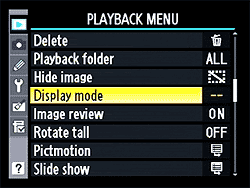
Figure 1 : Display Mode

Figure 1 : Display Mode

Let’s get into the Playback menu by pressing the MENU button on the back of your camera. While you are inside the Playback menu, scroll down to the Display Mode as shown in the picture, Figure 1: Display Mode.

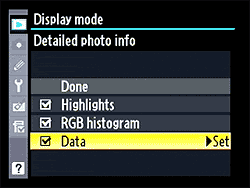
When you click on the Display Mode, you will get three options: Highlights, RGB histogram and Data. All these options inside the Display Mode are disabled by default (on Nikon D90) and you have to enable them individually.

Figure 2 : Set Options

Figure 2 : Set Options

When you check on the Highlight option, it will enable the Highlight Overexposure Warning and you can see the blinking zone right on the histogram graph where the photograph or part of the photograph is overexposed. Second option, RGB histogram, will set the camera to display RED, GREEN and BLUE histogram on the LCD monitor while you are previewing the photograph using the playback button. That means you can now see the pixel values and the concentration of all the colors in the photograph. Last option, Data, will give you the details of f-stop, white balance and other EXIF (Exchangeable Image File Format) data related to the photographs.

I definitely recommend enabling the first option to highlight the overexposed area. And, if you are interested to know further, you can enable them all and see what kind of information your camera is providing to you about the photographs.

NOTE : Even if you enabled these options, you still have to use the Multi-Selector button to view them while previewing the photographs on the LCD monitor.