How To Setup Automatic Exposure Bracketing (AEB)

I wrote a blog about the exposure compensation and bracketing last month where I talked about the exposure compensation, when to use it and what does the bracketing mean? In this blog, I am going to talk about the Automatic Exposure Bracketing (AEB) and how to set the controls to activate the exposure bracketing feature for the Nikon D90 or any other DSLR in that matter although the menu settings and the controls might be in different places for a different camera. Sometimes, manually bracketing and taking multiple shots will be forgetful and tedious job. And that is the main reason we use Automatic Exposure Bracketing (AEB) feature available in most of the advance DSLRs. When AEB is activated, camera will take three (or more depending on the camera model and the settings applied) shots automatically provided that you are in a continuous shooting mode or a burst shooting mode. Once the automatic bracketing is activated, when you press the shutter release button once, it takes the first picture at the camera measured exposure, second picture with a negative exposure compensation (usually -1/3 EV but Nikon D90 allows you to specify a different value), and the third with a positive exposure compensation (usually +1/3 EV).

How to set Nikon D90 for AEB?

Nikon D90 Bracketing Menu

Nikon D90 Bracketing Menu

1. Press the Menu button on the left side of your camera.

2. Navigate to the Custom Settings Menu (Pencil icon).

3. Go to e bracketing/flash menu and option e4 is for setting up Auto Bracketing with different options.

4. Inside auto bracketing, you have other options available as well to set for but Automatic Exposure (AE) is what we are discussing here.

D90 Bracketing Order.png

You can also set the order of how you would want your camera to take the pictures whether it is in the order of correct exposure first, under exposure second and over exposure at last or under exposure first, correct exposure second and over exposure is at third. In order to set that order, you have to go to e6 Bracketing order menu under e bracketing/flash menu and set whichever order you want. This doesn't make any difference on the exposure but just the order in which photographs will be taken and saved in the memory.

Nikon D90 Bracketing Button

Nikon D90 Bracketing Button

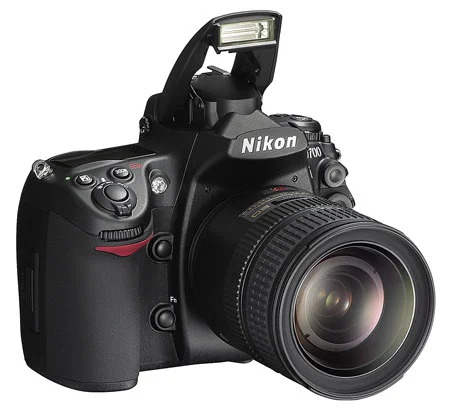
Now the next step is to set the exposure value and the number of frames you would want. Nikon D90 allows you to shoot 2 frames over exposed and one correctly exposed (+2F) or 2 frame under exposed and one correctly exposed (-2F) or traditional 3F which gives one under exposed, one correctly exposed and one over exposed picture. So the maximum number of frames for Nikon D90 is 3. In order to setup +2F, -2F or 3F, press the BKT button on the left side of the camera, just below the flash button, and once the button is pressed, you will see an option displayed on the top LCD near the shutter release button to set the exposure value and the number of frames. While pressing the bracketing button, rotate the main command dial to change the number of frames whether it is +2F, -2F or 3F and use the sub command dial to change how much you want to shift the exposure value for the under and the over exposed photographs. Once you are done with all those setup, your camera is ready to take the bracketed shots.

Automatic Exposure Bracketing is a great feature if you want to blend multiple exposure shots and extract the details and the shadows by creating an HDR (High Dynamic Range) image. This technique is getting increasingly popular in landscape photography and I use it almost every time when I shoot night cityscapes .

How To Setup Nikon SB-600 Flash To Work In Commander Mode

If you want to use and control an external flash unit like SB-600, SB-800 or SB-900 through wireless media using your Nikon DSLR camera built-in flash, you have to setup a commander mode in your camera. If you have already setup commander mode, you can follow the steps below to setup your flash unit.

How to setup SB-600 as a Wireless Remote Unit?

SB600-1.jpg

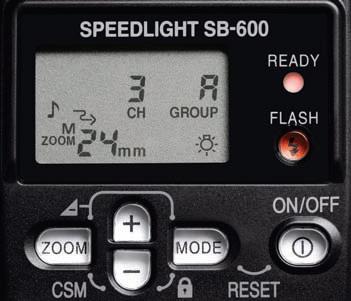
1. On the SB-600, press the ZOOM and "-" buttons simultaneously for 2 seconds to display the Custom Settings mode. You will see OFF displayed by default.

2. Press the ZOOM or MODE button to select wireless mode ON. Now you have activated wireless remote mode.

Next step is to set the Channel and Group as per your camera settings.

3. To set the group and channel, press the ZOOM and "-" buttons simultaneously for 2 seconds. You can also alternatively press power (ON/OFF) button for one second. Default settings for Channel and Group are CH 3, Group A.

4. Press the MODE button to highlight the Channel (1, 2, 3 or 4 ) and it will display the blinking channel number.

SB600-2.jpg

5. Then press the "+" or "-" button to set the Channel number and press the MODE button to lock the selection and move to the Group display.

6. When you see blinking Group displaying on the screen, press the "+" or "-" button to set the Group and then press the MODE button to lock the selection.

Note - Please note that the Channel number and the Group settings should match with your camera's commander mode group and channel settings. Now you are all set to use SB-600 flash unit remotely to be controlled by your camera's built-in flash unit. But please remember to pop up the camera's built-in flash so that it can send the signal and the exposure information to the external unit, SB-600. Otherwise the setup won't work. If you want to turn remote wireless mode off after getting the job done, simply follow the last two steps.

7. Press the ZOOM and "-" buttons simultaneously for 2 seconds. Then the screen will display ON (Which we did on step 2).

8. Press the MODE button and the screen will display OFF. Which means wireless remote control is off.

If you are looking for how to configure a Nikon SB-800 and a Nikon SB-900 flash units in a wireless mode, here are the links for How to configure a SB-800 flash unit as a Master flash unit and How to setup a SB-900 flash as a Master flash unit.

July 4th Fireworks In Washington DC

Washington DC is probably one of the best place to celebrate fourth of July. July 4th celebration is an all-day event in the nation's capital, beginning with the parade along Constitution Avenue and ending with the fireworks. Fourth of July celebration is a great opportunity to shoot fireworks, specially in Washington DC. Shooting fireworks is always fun and new experience to me no matter how many times I have done it before. Usually, in the beginning of the shooting, I set my camera settings to basic for fireworks shooting and later play around with it and do new experiments. I have always learned more and more when I play around with the camera settings and adjust it beyond widely recognized industry standard settings. Last month I wrote a blog post about camera settings to capture fireworks using Nikon D90. Even though that camera setting was specifically for D90, it can be applied to any other camera. You may find different terminology for different brands of camera or menu settings will be in different places but the overall concept is same; lower ISO, 3-4 seconds of shutter speed and small aperture, f/12 for example. Other than following the basic camera settings, only way to master the firework shot is keep practicing and trying new ideas and play around with your settings.

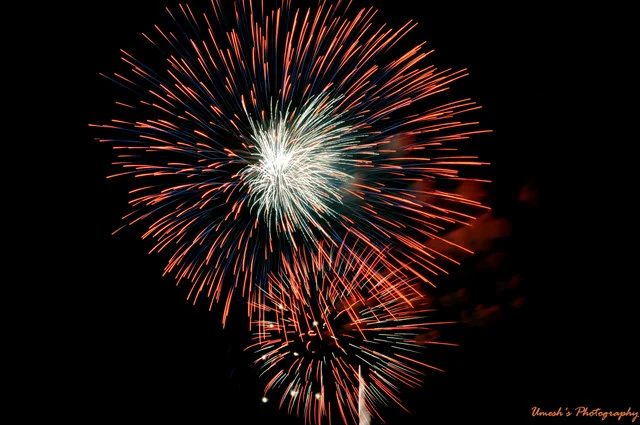
Here are couple of shots from July 4th, last Sunday. In the first picture, you can see little smoke in the background which could have been avoided if I had closed the shutter right after the explosion but since my camera was not in the BULB mode, there was no way to close it manually other than waiting for the exposure time to be finished. But this is the part of the learning process.

July-4th-Fireworks.jpg

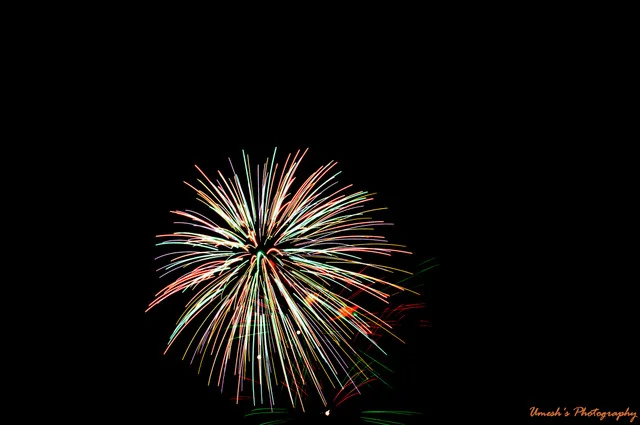
In this second picture, smoke is not visible and fireworks looks crisp in pitch-black background. This time I learned from my previous mistake and changed the shutter speed from 4 seconds to 2 seconds, changed the aperture from f/12 to f/16 and snapped it right after I heard the explosion so that the shutter will be closed before the smoke is visible.

July-4th-Fireworks-in-DC.jpg

If you have any suggestions about shooting fireworks or learned new tips and tricks from your experiment, please share it with us. Happy Shooting!