How To Use AE-L/AF-L Button Correctly?

This post is a part of our Q&A section. If you want to submit your question, please use the form in the Contact page.

QA.jpg

Darren (London, UK) asked : What is the function of AE-L/AF-L button which is on the right side of the viewfinder on my Nikon D60. I read the camera manual but couldn’t grasp the concept of it. Can you write about its feature or may be how to use it and when to use it?

I wrote a blog on how to set AE-L/AF-L button on Nikon D90 and how does it work a while ago. Nikon’s all DSLRs including D60 share same theory about how it works but it depends on the situation when do you want to use it. Basically AE-L/AF-L stands for Auto Exposure Lock/Auto Focus Lock but you can use AE-L/AF-L button for many other different functions. You can even use this button to lock Flash value which we discussed in a earlier blog. Camera menu option and the button position on the camera may vary depending on the camera model, but you will find it under the CSM menu and probably you have to go under the Control option. If you want to see the details on how to set AE-L/AF-L button in your camera, you may want to check the blog post on How to set AE-L/AF-L button on Nikon D90. In this article, I am going to demonstrate the effect of Auto Exposure Lock feature with the help of couple photographs I took. Once you grasp the concept of it, you can apply the technique in similar situations.

Before applying Auto Exposure Lock (AE-L)

Before applying Auto Exposure Lock (AE-L)

My camera was in Aperture Priority mode and the metering system was in Matrix metering mode. That means camera metered the exposure based on the overall scene inside the frame. The white snow background gave the sense of a bright situation to the camera metering system and it calculated the Shutter speed accordingly. But when I took the picture, the main subject came out underexposed because the camera metering system couldn’t figured it out that the main subject was not as bright as majority of the frame.

After applying Auto Exposure Lock (AE-L)

After applying Auto Exposure Lock (AE-L)

To overcome this issue, I thought Auto Exposure Lock (AE-L) feature would be the best choice in this situation. Before activating the feature, I zoomed in little bit so that the brighter area in the frame will get reduced and the camera metering system won’t be fooled. After that I focused on the main subject and press the AE-L/AF-L button to lock the exposure at the current values. At this point, the camera metering system calculated the exposure values based on the relatively darker area because I eliminated the most of the snow by zooming into the subject. I then zoomed out (recomposed the shot) and took a picture with the locked exposure. This gave me a nicely lit subject and well exposed background. If you are not careful enough with the framing, you might end up getting some overexposed areas in the frame as well.

[Updated on 4/30/2019] Someone might argue that why don't we use spot metering instead of matrix metering and lock the focus on the subject’s face and meter the exposure. By doing so, camera is going to meter the light based on the spot where the focus is locked on and not the entire frame, which will then properly exposed the subject. Yes, it might work in some cases but not a good choice in every situation, and that is the exact reason I chose this picture to demonstrate the effect. If I use spot metering in this particular scenario, it will properly expose the subject but will also overexpose the snow area way too much than I would like it be.
Lincoln Memorial Reflecting Pool

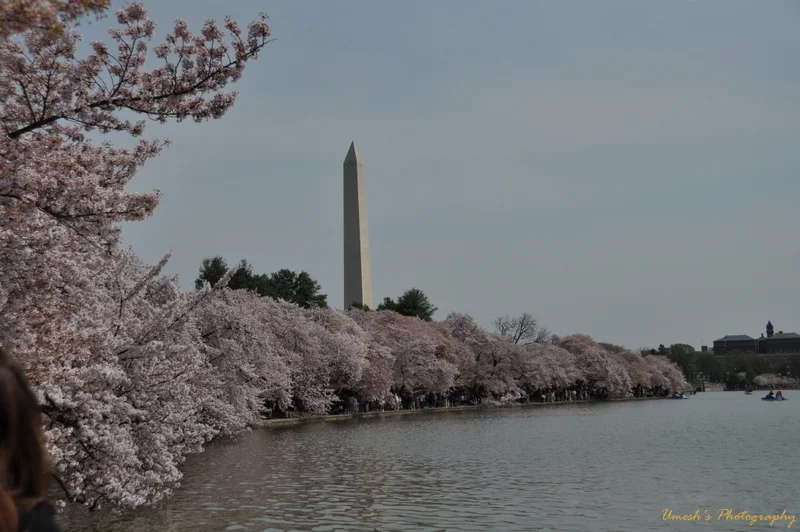
I took this picture of Reflecting Pool, which is located in between the Washington Monument and the Lincoln Memorial, last year. If I remember correctly, it was a cherry blossoms festivals 2010 and hundreds of thousands of tourists from around the world traveled to DC to see the beautiful cherry trees blooming to its peak around the Tidal Basin. At first, I was thinking to drive down there but a friend of mine suggested me to take a metro instead. So, I drove down to the nearest metro station, parked there and took a metro going towards the Smithsonian metro station. I am so glad that I took his advice and took a metro. It took me almost 30 minutes driving around a metro station parking lot to find a parking spot. Inside the metro station, I was overwhelmed by the crowd and then immediately got worried about the camera gears I was carrying with me. I had a heavy camera bag along with a tripod bag and it was getting very difficult for me to manage the space inside the metro. Somehow, I managed to get off at Smithsonian metro station after one and half hour, and then to my surprise, I saw the biggest crowd in DC ever. I was not able to walk on my own, the crowd was moving me and I was going wherever it would take me. When I reached the National mall, I got a little bit of a relief and got chance to breathe some fresh air but the crowd was still growing bigger and bigger.

You can also see crowds in the photograph below, which I took from the stairs of the Lincoln Memorial facing towards the Washington Monument. It was a beautiful scenery around the mall with all the green trees and the colorful dresses. The entire surrounding was joyful with happy faces and the whole environment was very encouraging to capture those beautiful moments. I took quite a few shots which I will continue to share with you in my future posts.

Lincoln Memorial Reflecting Pool

Lincoln Memorial Reflecting Pool

Focal Length : 60mm     Exposure : f/9     Shutter : 1/320sec     ISO : 200

This is one of the best photographs of reflecting pool I have taken so far. After I came back home and reviewed some of the pictures I had taken, I thought it was worth all the troubles I went through that day. If you are planning to take photos around the National mall area, I suggest you to plan your travel accordingly because DC gets very busy on special events days and I learned it the hard way.

Here is the cherry blossoms shot I manage to take that day.

Cherry Blossom

Cherry Blossom

Focal Length : 90mm     Exposure : f/13    Shutter : 1/200sec     ISO : 200

Trying Multiple Exposure Is A Fun Shooting

Multiple exposure feature lets you combine two or more exposures into one image without using any post processing tool. This option is only available in P, S, A and M exposure mode. Sometimes it’s good to play with camera settings and do an experimental shooting. And, if you are planning for something fun, trying a multiple exposure is a good option. Nikon offers a feature called "Multiple Exposure" which combines two or more images using the RAW data from the sensor, producing images that are blended together smoothly. Here is a step by step camera setup guide if you are interested to try this on your camera.

Camera settings for Multiple Exposure

Multiple Exposure Menu on Nikon D90

Multiple Exposure Menu on Nikon D90

1. Go to the Shooting menu by pressing the Menu button on the back of your camera.

2. Choose “Multiple Exposure” from the Shooting menu.

3. Select the “Number of shots” you want to combine into a single frame. Nikon D90 allows you to select up to 3 shots.

Multiple-Exposure-No-of-Shots.jpg

4. Choose Auto Gain and select either ON or OFF. When ON is selected, Nikon D90 will divide the total exposure of the image by number of shots specified. For example if you specified number of shots 2 and Gain is ON, each shot will get ½ of the total exposure. If Gain is OFF, total exposure is applied to an individual shot.

5. Press OK to set the Gain.

6. After you are done with the setting, scroll up to the Done and hit OK. Upon completion, you will see the Multiple Exposure icon (overlapping rectangle) on the LCD screen and you are ready for the shot.

7. When you take the first shot, Multiple Exposure icon on the LCD screen starts blinking until you finished shooting all the series (no of shots you specified). If you are in a continuous shooting mode, all the series will be shot in a single burst shot. When you have taken all the series, blinking icon disappears and camera will turn off the Multiple Exposure feature automatically.

Here are the couple of shots I took today as an experiment. I set the number of shots 2 and shot couple of pictures with the Gain OFF and again took another set with the Gain ON. I took all of the pictures with the same exposure settings and didn’t use a tripod, which is why you can see a little overlapping between two frames when they were combined to a single shot. When you take two shots, camera will process itself and combine them into a single shot giving you the Multiple Exposure effects in a single image. I have seen people being experimental and create ghost effects using this technique.

Gain ON

Multiple Exposure Gain On

Multiple Exposure Gain On

Focal length : 24mm     Exposure : f/3.8     Shutter Speed : 1/60sec     ISO : 800

Gain OFF

Multiple Exposure Gain Off

Multiple Exposure Gain Off

Focal length : 22mm     Exposure : f/3.8     Shutter Speed : 1/60sec     ISO : 800

In both situations, I used only one teddy bear to get the final image. What I did is, first I put the teddy bear on the left side and took a shot. Then, I put the same teddy bear on the right side and adjust a frame, so that both can fit into a single frame after camera combines two images into one, and took the second shot. After camera combined both shots, this is the result I got. It's not a perfect shot and also because of the handheld shooting, pictures didn’t get align properly. But, you can create amazing effects using this technique if applied properly. Nice thing about this feature is that you don't have to use any software to get the effect, your camera will do it for you automatically.