How To Take Multiple Shots In A Self-Timer Mode?

This post is a part of our Q&A section. If you want to submit your question, please use the form in the Contact page.

QA.jpg

Shyam (Delhi, India) asked : I have set my camera settings to take multiple shots in a self timer mode, but when the pictures is taken, it takes only one shot. What am I doing wrong here?

Hi Shyam! First of all, I found your question little bit incomplete. You didn't mention what are the settings you have adjusted on the camera and under what lighting condition you are taking pictures. Sometimes, even if your camera settings are right, because of the available lights or not enough time to recycle the flash power or many other variables, you may not get the result you want. If you are shooting in a bright daylight, all you have to do is make sure that the camera is set to continuous (burst) shooting mode and the focus is being tracked and locked if the subject is moving. If you are shooting in a dark night and using an external flash unit, you might have to check couple of other settings as well, which I will describe bit later in this blog. First, lets review the setup steps that need to be done on the camera to take multiple shots in a self-timer mode.

Camera Settings for a Self-Timer Mode

In this blog, I am taking the reference of Nikon D90, but I believe these camera settings are same for almost every other Nikon DSLR camera. It is possible that you might find the buttons and the menu options in different places, but once you get the idea, it won’t be hard to adjust the settings no matter which camera brand and model you use.

Now, lets get into the setup menu.

1. Press the Menu button on the back of the camera and go to CSM (Custom Setting Menu).

2. Use the multi-selector button and go to c Timers/AE lock menu.

3. Go to the option c3 and select Self-timer, and you will see two options inside.

Nikon D90 Self-Timer Mode Menu

Nikon D90 Self-Timer Mode Menu

4. First option, Self-timer delay, allows you to set the time after how many seconds camera should start taking the pictures, and the available values are 2s, 5s, 10s, 20s.

4. And the next option is Number of shots you want to take in a self-timer mode. You can choose between 1 and 9 shots.

Nikon D90 Self-Timer Mode

Nikon D90 Self-Timer Mode

5. Optionally, you can also select CL (Continuous Low) mode shooting speed (1fps, 2fps, 3fps and 4fps) into CSM->Shooting/display->d6 (CL mode shooting speed).
D90 Burst Mode.png

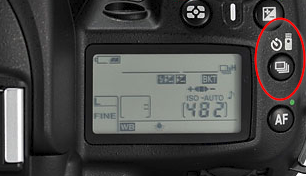
6. Finally, you have to change the shooting mode into self-timer mode (with burst shooting). You can do so my pressing the button on the top (shown in the picture) and rotating the main command dial while the button is still being pressed. When you see the burst mode with the clock (self-timer) icon displayed on the LCD screen, you can let go the button and you are all set.

If you have already done all of these setup on the camera and still not getting multiple shots in a self-timer mode, it is time to check your camera's Autofocus Mode. When you are shooting in a burst mode, you probably want to use AF-C or AF-A autofocus mode. And if you are shooting in a dark night with an external flash on, you may not get multiple shots because of the flash recycle time. Once you take a shot, flash may take a few seconds to recycle itself and get ready for the next shot. Also, if you are shooting with a higher frame rate, 4fps for example, its hard to achieve that shooting speed with an external flash unit attached on the camera.

I hope I was able to answer your question, and if you have a follow up question or more questions, please write back to me. Happy shooting!

Choosing A Flash Sync Mode On Nikon D90

Nikon D90 has five flash sync modes but not all of the sync modes are available in every exposure modes. Depending on which exposure mode you are currently using, you can choose one of the available flash sync mode. These flash sync modes can be set by using a quick setting screen on the back of the camera or holding down the flash button on the front of the camera (near the lens mount on the left side) and rotating the main command dial (also known as the rear command dial) while the button is still being pressed. When you select a sync mode, you can see the currently selected mode on the LCD screen indicated by the corresponding icon as shown below.

We have already discussed about the front curtain sync and the rear curtain sync in detail in my previous blog post. And, in this blog post, I will describe all of the flash sync modes in brief and will see which mode is available in which exposure setting.

1. Front Curtain sync

Front-Curtain-Sync.jpg

In this mode, flash fires as soon as the front curtain opens completely. The shutter then remains open for the duration of the exposure, which is until the closure of the rear curtain. If you are shooting a moving subject, it will produce a stream of motion blur lights effects, also known as the ghost effect, in front of the subject. The reason behind this effect is - when the flash is fired at the beginning of the exposure, it freezes the subject with enough lights in the scene and then subject continues to move, which creates a blurred effect.

2. Rear Curtain sync

Rear-Curtain-Sync.jpg

When the flash is in rear sync mode, the front curtain opens completely and then remains open for the duration of the exposure. At the end of the exposure, the flash is fired and the rear curtain closes. If the subject is moving, you will get the ghost effect behind the subject because the flash light at the end of the exposure will freeze the subject.

3. Red-eye reduction

Red-eye-Reduction.jpg

In this mode, there is a one second lag after pressing the shutter release button and before the picture is actually taken. During the delay, camera’s red-eye reduction lamp lights which causes the subject's pupil to contract and thus reducing the potential red-eye effects.

4. Slow sync

Slow-Sync.jpg

Slow sync mode allows the camera to use the shutter speed as slow as 30 seconds when the flash is attached, which helps to balance the exposure of the overall scene by illuminating the background with the ambient light and the subject with flash light. It's better to use a tripod to avoid the camera shake if you are using a flash in slow sync mode.

5. Red-eye reduction with slow sync

Red-eye-reduction-with-Slow-sync.jpg

This mode combines the slow sync with the red-eye reduction behavior when using the Program or the Aperture priority exposure mode.

Which sync mode can be used with which exposure mode?

In Program, or Aperture Priority mode, you can use all five flash sync modes. In Shutter Priority, or Manual Exposure mode, you can use front curtain sync, rear curtain sync and red-eye reduction modes. And in auto, or portrait, or closeup, or scene mode, you can only use auto (same as front curtain sync) and red-eye reduction mode, whereas in Night Portrait mode, you can only use slow sync and red-eye reduction with slow sync mode.

Nikon's Flash Value Lock (FV Lock) Feature

Nikon’s latest DSLR cameras come with the feature to lock exposure settings and other parameters like Autofocus, Focus point area, flash value etc. When the exposure is set for the shot, or when the camera acquires auto focus on the subject, or when we want to lock the flash value, we can use the lock feature to lock those settings so that it won’t change inadvertently during the shooting. We discussed about Auto Exposure Lock (AE-L) previously, and today, we are going to discuss about the Flash Value lock (FV Lock) feature.

The basic idea is common between these two features. Auto Exposure Lock feature is use to lock the exposure value and the Flash Value Lock is use to lock the flash power. This feature comes very handy when we are shooting in camera’s default metering mode, matrix metering mode, in which the camera calculates the exposure and the flash setting by taking the information from the entire frame rather than the subject itself. Let’s say we put the subject in the middle of the frame, lock the focus on the subject and press the shutter release button halfway down to calculate the exposure. Now, if we continue pressing the shutter release button all the way down and take a picture, there would be no issue and the camera would balance the overall exposure of the subject and the background image. But, let’s say, we don’t want to put the subject in the middle of the frame and want to recompose the shot. As soon as we move the camera to recompose, metering system will calculate the new exposure value and the flash setting based on the new information from the frame. If the new composition has more darker area, camera will increase the flash power to compensate for the less available light and it would result into the overexposed subject when we press the shutter release button to take the picture. Now, let’s see how can we solve the problem by locking the flash value.

How can we lock the Flash Value?

To solve this problem, we can program the camera’s function button or even AE-L/AF-L button to activate the Flash Value Lock (FV Lock) feature once the button is pressed. When we program either of these two buttons for the FV Lock, next thing we would have to do is point the camera/flash towards the subject, press the shutter release button half way down which locks the focus on the subject and meters the exposure. We would then lock the flash value by pressing the FV Lock button, which we just programmed. After pressing the FV lock button, camera will fire pre-flashes on the subject briefly and lock the flash power to properly expose the subject in given lighting situation. We would then recompose the shot by moving the subject inside the frame. After the flash value is locked, even if the lighting condition is changed in the frame by recomposing the shot, flash value will not be recalculated by the camera and stays in the previously locked value. When we are ready to take the shot, we will press the shutter release button and the flash will be fired with the power camera previously locked into. This will give the proper exposure to the subject ignoring the ambient light in the background.

Once we lock the flash value, it remains on that power setting unless we press the FV Lock button again, or the camera is turned off, or the light meter in the camera times out. We can increase the light meter timeout period but we have to be careful doing so, because it might drain the camera battery faster if we forget to bring it back to it’s default value after we are done shooting with the locked flash value.

Flash Value Lock.JPG

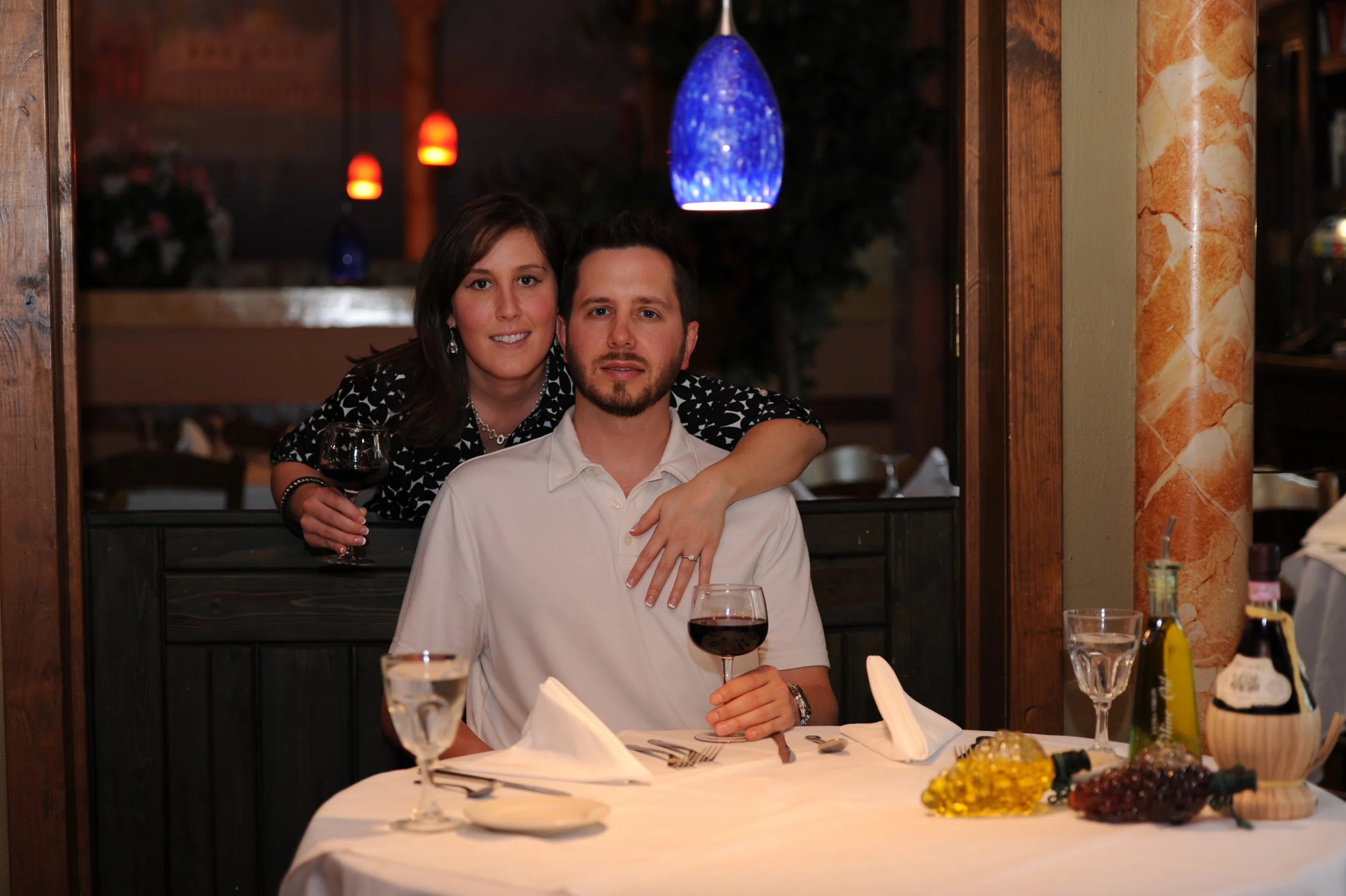
In this photograph above, there is a mix of color tones and the lights in the background and the foreground. There is a dark table in the background and a white tablecloth in the foreground. She is wearing a dark color dress and he is wearing a white t-shirt. The lighting situation is bit tricky and I wanted to properly expose for the subjects and place them on the side of the frame rather than in the center of the frame (Rule of Thirds). This kind of a situation can confuse the camera light meter and flash may fire with the improper power setting. That is why I locked the flash value on the subject, recomposed the frame and then took the shot.

Normally we should use the FV lock feature to meter the subject that is off-centered and the background is bit darker.